


For Bluetooth ECG for iOS pairing, start with the recorder’s stated connection method and its supported app, then check the app’s Bluetooth permission. Depending on the system, connection may be managed inside the app rather than through the iPhone or iPad Bluetooth device list.
Bluetooth can be switched on while the ECG app still lacks access to it. That distinction is easy to miss when a tablet looks ready but the recorder never appears. Repeatedly searching the system settings may leave the actual problem untouched.
This guide helps equipment operators, biomedical engineers, and buyers separate those checks. You can match the recorder to its app, review iOS access, and find which connection stage failed. It also explains how recording differs from report handling. V&H product descriptions and Apple’s platform guidance provide the factual starting points; they don’t establish a supported setup for every device.
When operating equipment, follow the current instructions for use (IFU) for your exact recorder and software. The steps below guide the checks and supplier questions. They do not replace patient preparation instructions, device-specific recovery procedures, or your organization’s clinical policies.
Key takeaways
- V&H describes an app-managed BLE connection for its iOS equipment, using iCV200S as an example; confirm the method for your exact setup.
- Check the ECG app under Settings > Privacy & Security > Bluetooth. The system Bluetooth switch is a separate control.
- Record which stage fails: discovery, connection, waveform acquisition, saving, or report transfer.
- Use the recorder manufacturer’s instructions for PINs, pairing controls, and recovery. Another product’s procedure does not prove yours.
Choose the connection route for your ECG recorder
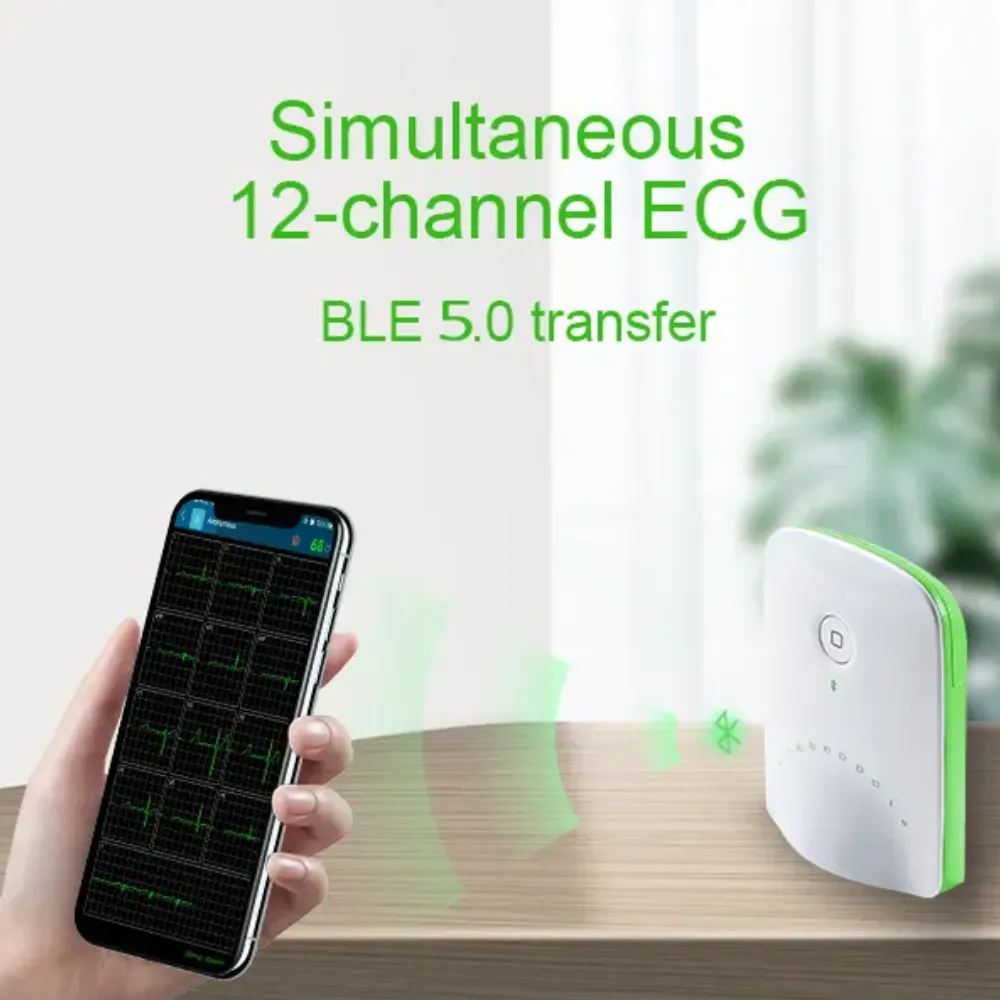
Bluetooth describes the wireless link, but it doesn’t tell you where the operator must establish it. A system may direct you to the Apple device’s Bluetooth settings, or it may discover and connect to supported hardware through its companion app. Read the selected equipment’s instructions before deciding which screen should show the recorder.
Vales and Hills Biomedical Tech. Ltd. (V&H) describes an app-managed Bluetooth Low Energy (BLE) workflow in its iOS product category. Its FAQ uses iCV200S as an example and names vhECG Pro and vhECG Smart. The description says manual pairing in iPhone or iPad settings is not required for that described workflow. Confirm the exact model, software, and firmware combination before applying it to your equipment.
To identify the relevant product family, explore V&H’s iOS ECG options and compare the full model name with your recorder’s label.
Discovery, connection, and pairing are different stages
Discovery means the software can find a recorder. Connection means the app or host has made contact with it. Pairing, where required, links the devices through the system’s specified process. These stages are related, but a device in a list does not prove that the ECG app is receiving live data.
If the instructions use app-managed discovery, start with the named app and its stated connection screen. If they require system pairing, follow that specific sequence. Avoid adding a second procedure from an unrelated guide because the first screen looks unfamiliar.
The word “wireless” also needs a clear boundary. A recorder-to-tablet Bluetooth link does not prove that the patient connection is cable-free. Patient cables, electrodes, and acquisition preparation remain model-specific parts of the ECG system.
Prepare Bluetooth ECG for iOS pairing
Identify the full setup
Before changing settings, write down the equipment you are trying to connect. A product-family name alone may omit a hardware revision or software requirement. ECG can mean electrocardiography or electrocardiogram. An app with ECG in its name is not always the correct companion for your recorder.
Keep these details together:
- Recorder model and the identifier used by its instructions.
- Firmware or hardware revision, where available.
- Exact app name, developer, and installed version.
- iPhone or iPad model and its operating-system version.
- Current setup document and its revision or date.
- Whether this is a first connection or a previously working setup.
The vhECG Pro App Store listing describes communication with compatible VHMedical ECG hardware through Wi-Fi or Bluetooth. It says the app and hardware are intended for doctors. That description does not prove that each recorder supports both connection types, or that every Apple device is a supported acquisition host.
Hypothetical example: Maya is preparing one clinic iPad for an equipment evaluation. The tablet’s Bluetooth switch is on, but Maya has not recorded which companion app the recorder requires. They compare the recorder label, proposed software, and setup document before changing permissions.
Their outcome is a written setup record with one open app-version question. They have not assumed that the recorder is faulty.
This is a fictional planning example, not a V&H customer case or completed device test.
Check power and the stated ready state
Check the recorder’s power source using its current instructions. V&H’s vhECG Pro usage description warns that insufficient recorder battery power can affect communication with iOS equipment. That supports checking power; it does not prove a universal battery duration, charging method, or indicator color.
Also identify the manufacturer’s stated ready state. Do not borrow a long-press duration, light pattern, PIN, or reset sequence from another ECG brand. If the document does not identify the controls for your recorder, obtain the correct revision before attempting recovery.
Check iPhone and iPad Bluetooth permission
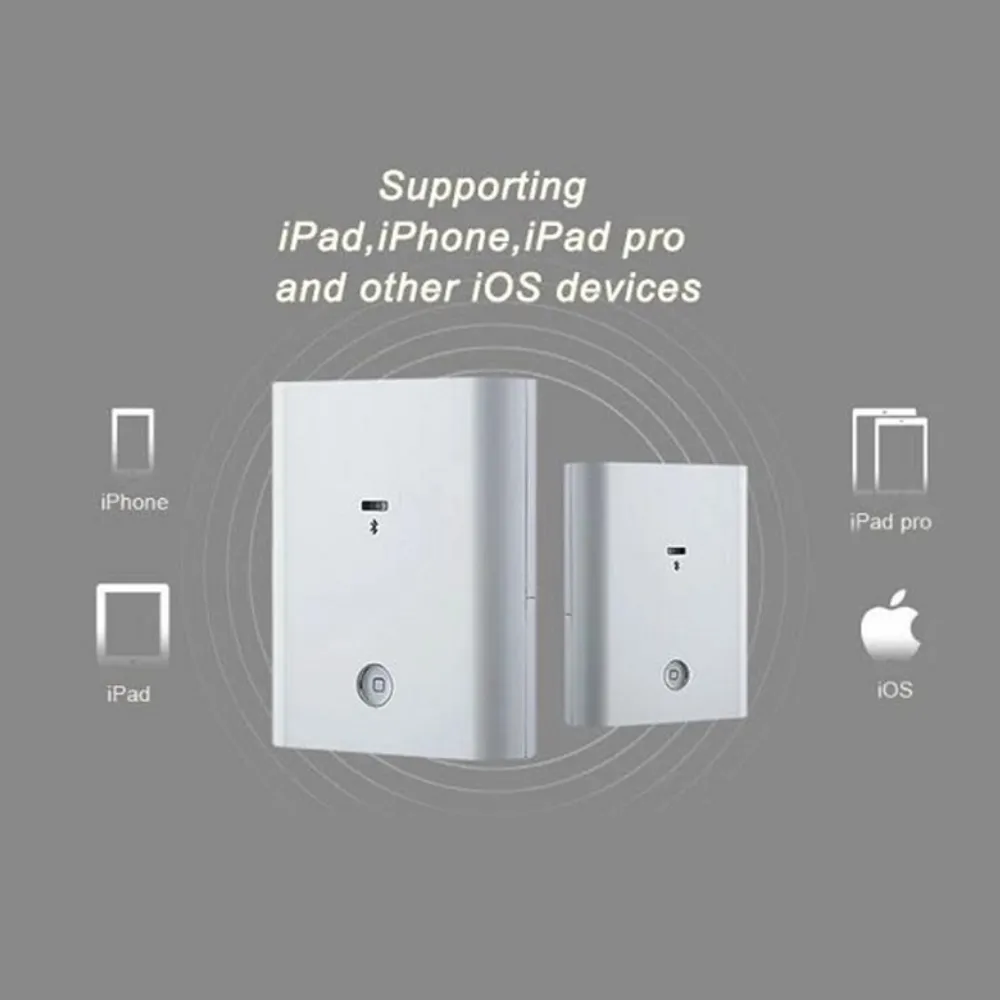
The Apple device’s Bluetooth setting and the app’s Bluetooth permission answer different questions. The first concerns the wireless function; the second concerns whether the selected app may use it. An enabled system switch alone doesn’t resolve both.
Apple’s Bluetooth privacy guidance explains that apps can request permission to use Bluetooth. You can review that access through the following path:
- Open Settings on the iPhone or iPad.
- Select Privacy & Security.
- Select Bluetooth.
- Review access for the chosen ECG app.
Confirm the app name and developer before changing its permission. A similar app name or a second installed ECG app can make a screenshot ambiguous. Record which app you checked and what its permission setting showed.
If the app is absent from that list, the absence alone does not identify the cause. Check the app’s stated first-run process and whether the chosen Bluetooth function has been opened. Do not assume that reinstalling the app or granting unrelated permissions is the next required step.
Your clinic may manage settings on its devices. Ask the administrator to review any restrictions if a setting cannot be changed. Keep device-management profiles and other protections in place while the support team checks the issue.
After an authorized permission change, return to the manufacturer’s connection procedure and observe the result. Write down whether the recorder becomes visible and whether the stated connected state appears. “Permission enabled, recorder still not detected” is a more useful result than “Bluetooth does not work.”
Troubleshoot Bluetooth ECG for iOS pairing by symptom
Find the last stage you can check before choosing another action. Work through a controlled test using the approved procedure, and change one relevant condition at a time. Record an unknown result as unknown instead of treating it as a successful check.
| What you observe | What to check next | What it does not prove |
|---|---|---|
| Recorder is not discovered | Correct app, app permission, power, and stated discovery route | That the recorder hardware has failed |
| An unexpected recorder appears | Device identifier against the physical recorder and setup record | That the nearest or first-listed device is the chosen one |
| Recorder appears but will not connect | Compatibility, exact error, and stated existing-device associations | A universal PIN or reset requirement |
| App reports connection but no live waveform appears | Whether the app is in its stated acquisition mode and the required setup is complete | Successful ECG acquisition |
| Recording appears but cannot be saved or shared | The relevant save/export function, permissions, and destination requirements | That Bluetooth pairing caused the later failure |
Recorder not detected or connection interrupted
Apple’s Bluetooth accessory troubleshooting recommends checking power, proximity, app access, and manufacturer compatibility. It also discusses discovery and existing pairings. Apply those general checks through the ECG manufacturer’s instructions, especially where the app manages the connection itself.
Keep the Apple device and recorder in the chosen setup area while evaluating discovery. Do not substitute an assumed maximum range for the manufacturer’s specification. Record whether the problem occurs at startup, after an interruption, or only after a stated change to the setup.
If the recorder may already be associated with another host, check that association before changing it. Confirm the supported transfer or disconnection procedure. Do not erase another clinical device’s settings as a routine experiment.
For a previously working setup, list what changed: the app version, operating system, recorder assignment, or device-management policy. A change is an investigative lead, not proof of the cause. Avoid making multiple additional changes before collecting the original error details.
Connected is not the same as recording
An app may offer demonstration data, stored recordings, or other views alongside live acquisition. Confirm the stated mode and recorder identity before treating a displayed waveform as evidence of a working hardware connection. An app opening or a waveform on screen is not enough to prove live communication.
If the chosen connection is established but acquisition remains unavailable, record that narrower problem. Follow the approved equipment procedure for any examination affected by interruption. Technical troubleshooting should not introduce improvised patient-care instructions.
Hypothetical example: Jordan records the results of two equipment checks. On the first iPad, the chosen recorder never appears; on the second, a saved test record cannot reach its selected destination. They create separate discovery and report-transfer entries instead of calling both “pairing failures.” The outcome is a support handover that identifies different failed stages without claiming either problem has been solved.
This fictional example illustrates documentation, not measured performance or a clinical deployment.
For a broader handover framework, use the general Bluetooth ECG pairing guide alongside the current instructions for your selected system.
Verify acquisition and report handling separately
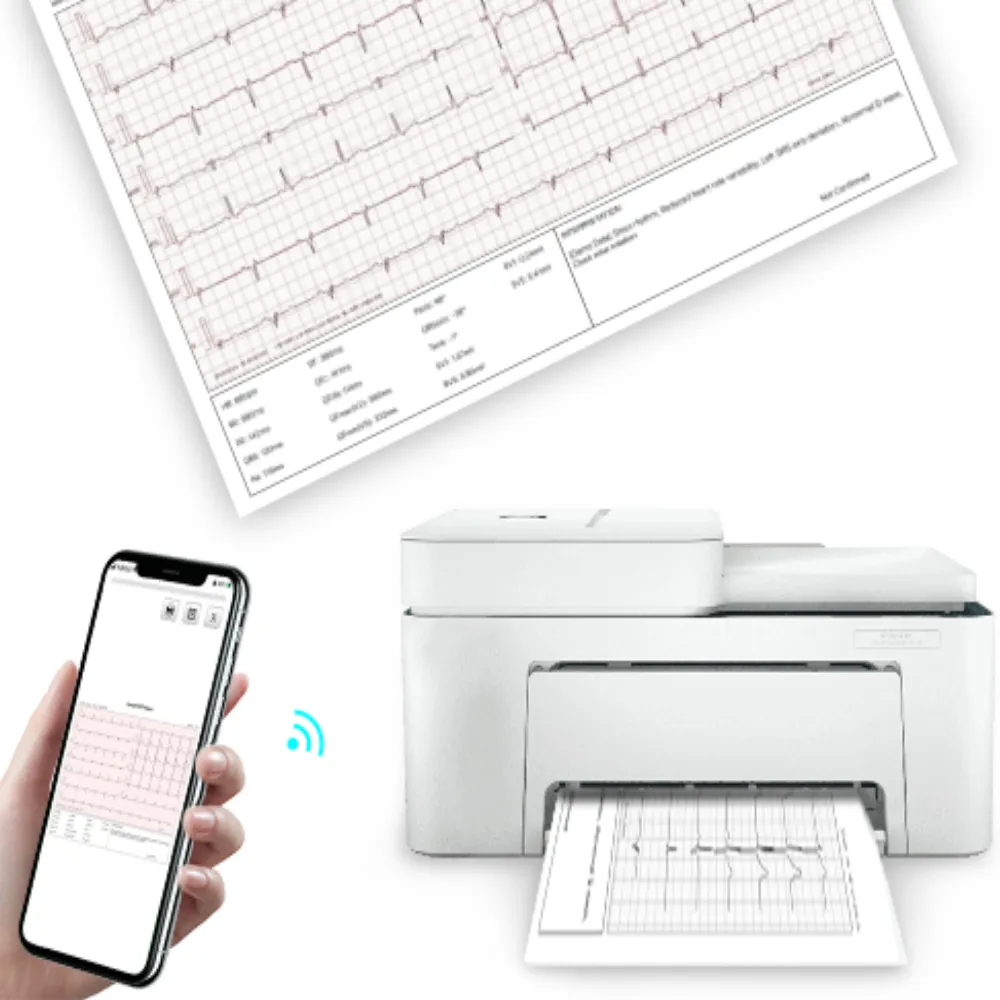
A useful connection check has a defined endpoint. For an acquisition evaluation, that endpoint might include identifying the chosen recorder and completing the approved recording check. For a report-workflow evaluation, additional save, reopen, and destination checks may be required. Agree on the scope before calling the system ready.
Keep a test record
Use the organization’s approved test procedure and authorized test data. Document what happened at each applicable stage:
- Identify: Does the displayed recorder identifier match the equipment under evaluation?
- Connect: Does the app show its stated connected state?
- Acquire: Does the approved acquisition check produce the expected result?
- Save: Can the permitted test record be saved and reopened?
- Transfer: Does the chosen, authorized destination receive the correct test output?
Mark a stage “not tested” if it falls outside the evaluation. A saved file does not prove transfer to a separate record system. Likewise, failure to reach a printer, email destination, or network service does not by itself demonstrate a Bluetooth fault.
Keep the source of each result: an app message, a saved test record, or a file at the destination. Note the time and setup. These details help the next person repeat the check instead of relying on memory.
Separate report transport from recorder transport
The recorder’s wireless link is one part of the workflow. Storage, sharing, printing, and any clinical-record interface depend on their own supported setup. Ask which function is included and which network, account, license, or destination requirements apply.
For context on the larger equipment workflow, see the iPad ECG system overview. Keep acquisition requirements separate from any claim about onward integration. Neither Bluetooth connectivity nor a report-sharing option establishes compatibility with every record system.
Questions about pairing an ECG with an Apple device
Must every Bluetooth ECG appear in iOS Bluetooth settings?
No universal system-settings procedure applies. V&H describes an app-managed BLE workflow for its cited iOS equipment. Other systems may require a different route. Use the exact recorder and app instructions to determine where discovery and connection should occur.
Can I use a PIN from another manufacturer’s guide?
Use only the PIN or method in the current instructions for your exact recorder. A code for another product does not show what your device requires. If the instructions don’t explain the prompt, record it and ask the supplier.
Does an App Store download prove compatibility?
An app download alone does not prove that the full setup is supported. Check the recorder, firmware, Apple device, OS version, and required function with the manufacturer. Keep the ability to install an app separate from an accepted equipment test.
Should I reset the recorder or reinstall the app first?
First identify the failed stage and preserve relevant notes. Resetting or reinstalling may change associations, settings, or locally held information, depending on the system. Use those actions only when the current manufacturer procedure and your organization’s requirements support them.
Does successful pairing prove that the ECG is ready for clinical use?
No. Communication is one requirement within a wider equipment workflow. The chosen setup, acquisition checks, operator training, documentation, and local acceptance process still apply. A Bluetooth connection is not a clinical interpretation or a substitute for professional review.
Prepare a useful V&H support request
Bluetooth ECG for iOS pairing is easier to check when the request identifies the recorder, app, Apple device, and last verified stage. Start with the stated connection route. Check app access separately from the system Bluetooth switch, then describe what changed or failed.
Provide the model, recorder identifier, app version, operating-system version, and relevant instruction revision. Include the exact error text and a screenshot with patient identifiers removed, where permitted. Distinguish “not discovered,” “not connected,” “no live acquisition,” and “report transfer failed.” That gives the support team a clearer starting point.
Ask for current setup documentation and confirmation of the proposed setup before using undocumented recovery steps. Keep unresolved questions visible, and record any approved changes so another operator can understand the result. If the workflow includes reporting or integration, specify the chosen destination and the stage already tested.
Request model-specific ECG setup information from V&H with those details. A precise inquiry supports a discussion of your setup without assuming that every recorder, app, or Apple device follows the same procedure.
Post time: November 27, 2026


